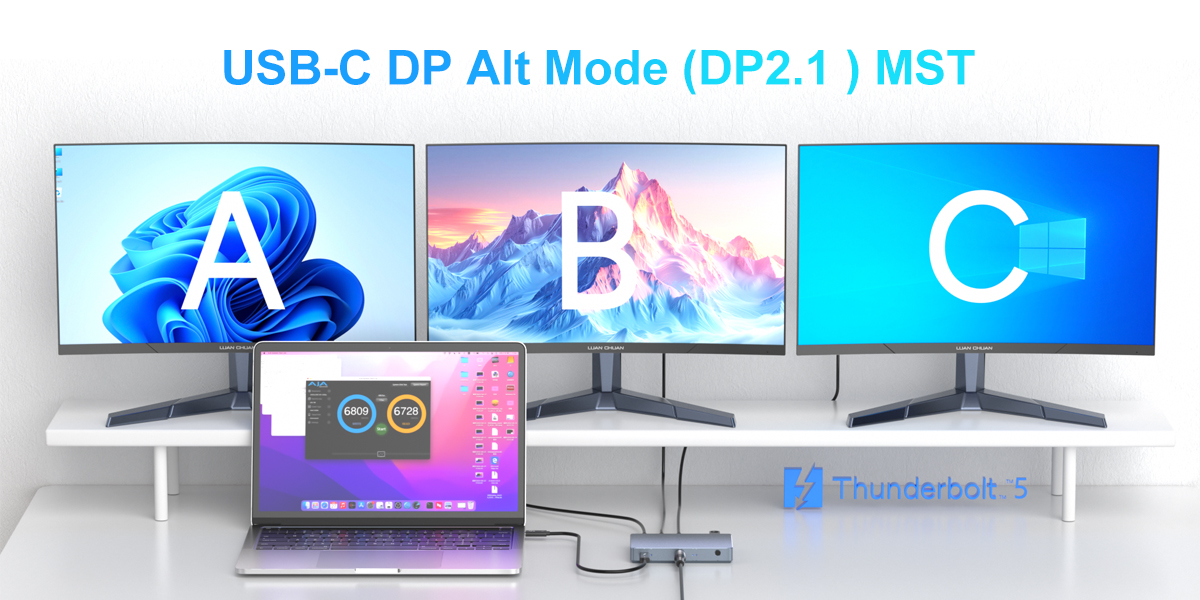
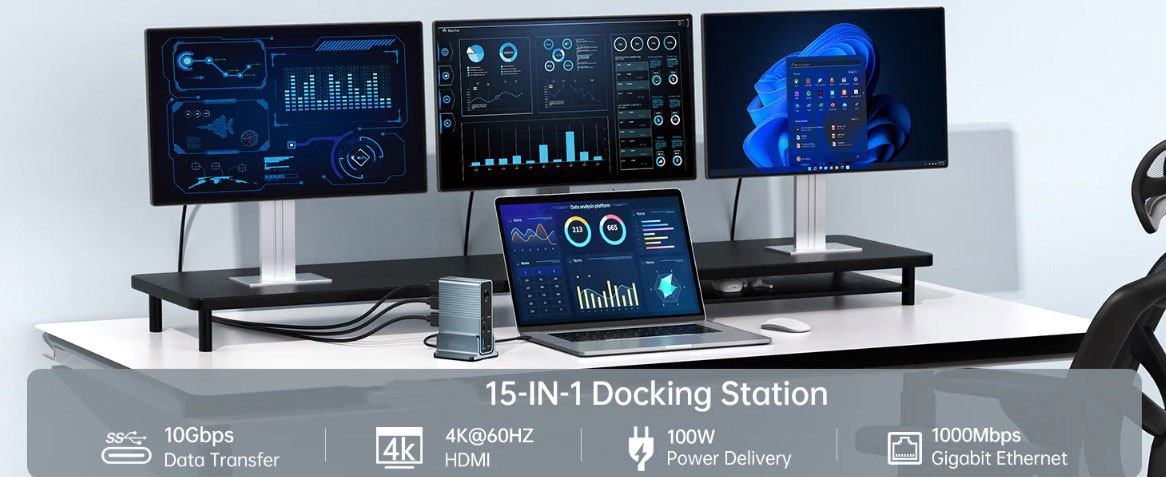
If you're utilizing a dual-PC setup or a hy-brid office arrangement, you might be wondering how to make the most of your workspace by connecting two computers to three monitors. A multi-monitor setup isn't just about looking cool; it can significantly boost your productivity and enhance your gaming experience. In this guide, we'll delve into the challenges and solutions of connecting two PCs to three monitors, and how KVM docks can simplify this complex setup.
Challenges of Connecting Two PCs to Three Monitors
At first glance, connecting two computers to three monitors may seem straightforward, but there are several challenges that users often encounter. Here are some common issues:
Cable Management Woes
When connecting multiple monitors and computers simultaneously, managing all the cables can quickly turn into a nightmare. You'll need an adequate number of HDMI, DisplayPort, or USB-C cables for each monitor and computer, which can easily lead to a tangled mess.
Monitor Input Switching Hassles
Switching between two computers on three monitors can be a cumbersome process, especially when you have to manually change the input on each monitor. This can disrupt your workflow and waste valuable time.
Peripheral Control Complexity
If you use multiple peripherals like keyboards and mice, switching between two computers can become complicated without the right tools. You may find yourself constantly unplugging and replugging devices, which is not only inconvenient but also time-consuming.
Resolution and Refresh Rate Compatibility Issues
Some monitors and computers may struggle to maintain optimal resolution and refresh rates when connected to multiple systems simultaneously. This can result in blurry images, stuttering, or other display problems that can negatively impact your work or gaming experience.
Why Connect Two Computers to Three Monitors?
A three-monitor setup offers more than just a larger screen real estate; it can significantly improve your productivity, multitasking capabilities, and gaming experience. Here are some compelling reasons to consider this configuration:
Enhanced Productivity
With three monitors, you'll have plenty of space to run multiple applications side by side. Whether you're working on reports, managing multiple projects, or monitoring multiple data streams, a three-monitor setup allows you to stay organized and focused.
Immersive Gaming Experience
For gamers, a three-monitor configuration provides an immersive experience like no other. You can extend your game across multiple screens, giving you a wider field of view and a more dynamic gaming environment. This can be especially beneficial for racing games, flight simulators, and other genres that rely on a wide field of vision.
Efficient Multi-PC Control
If you use two computers for different tasks, such as work and personal use, being able to control both systems on three monitors without constantly switching inputs can streamline your workflow. You can easily toggle between work-related applications on one computer and personal entertainment on the other, all on the same set of monitors.
Considerations Before Connecting Two PCs to Three Monitors
Before diving into the setup process, there are several important factors to consider to ensure a smooth experience:
Hardware Compatibility
Make sure your KVM switch supports the number of monitors and connection types (HDMI, DisplayPort, USB-C) you need. Additionally, verify that your PCs support multi-monitor output. Some older or budget PCs may not have the necessary graphics capabilities to drive multiple high-resolution monitors simultaneously.
Resolution and Refresh Rate Support
Check if your KVM dock can handle the resolution and refresh rate requirements of all three monitors. If you're using high-resolution monitors or gaming at 144Hz or higher, ensure that your KVM switch can support these specifications. Failing to do so may result in subpar display quality or compatibility issues.
USB Peripheral Compatibility
When using multiple PCs, you'll also need to switch between keyboards, mice, and other peripherals seamlessly. Choose a KVM switch that allows you to switch USB peripherals with the press of a button. This will save you the hassle of manually unplugging and replugging devices every time you switch between computers.
Additional Equipment
Some setups may require extra cables or adapters to ensure compatibility between your monitors, PCs, and KVM switch. Plan ahead and make sure you have all the necessary equipment before starting the setup process to avoid any delays or frustration.
Connecting Two PCs to Three Monitors Using a KVM Dock
The easiest and most effective way to manage two computers and three monitors is by using a KVM dock. This device combines the functionality of a KVM switch (which allows you to control multiple computers with a single keyboard, mouse, and monitor) and a docking station (which provides additional ports for connecting peripherals, power, and displays). Here's how to set it up:
Step 1: Choose the Right KVM Dock
Select a KVM dock that's capable of connecting two computers and three monitors. Look for a dock that supports dual-PC connectivity and offers robust video output capabilities, including 4K resolution at 165Hz or 144Hz for a smooth and high-quality display. Whether you're using it for work or gaming, a KVM dock that can handle high refresh rates will ensure a seamless experience.
Step 2: Connect the Monitors to the KVM Dock
Use the appropriate cables (HDMI, DisplayPort, or USB-C) to connect each monitor to the dock. Make sure the monitors are powered on and set to the correct input source.
Step 3: Connect the Computers to the KVM Dock
Plug each of your two computers into the designated ports on the dock. The dock will automatically detect both computers and allow you to switch between them using the control buttons or keyboard shortcuts provided.
Step 4: Connect Your Peripherals
Connect your keyboard, mouse, and other USB peripherals to the dock. These peripherals will be shared between the two computers, allowing you to control both systems without the need for multiple devices.
Step 5: Power Up and Start Using
Finally, power on your computers and monitors. The KVM dock will handle the switching between the two systems, allowing you to seamlessly operate both computers on three monitors.
Conclusion
Connecting two computers to three monitors doesn't have to be a complex or frustrating process. With the right KVM dock, you can manage multiple computers on three monitors seamlessly. This not only declutters your workspace but also enhances your productivity and gaming experience. If you're looking to simplify your dual-PC setup and optimize your multi-monitor workflow, a KVM dock is the solution you've been searching for.