As Thunderbolt technology is gaining traction, it’s imperative we learn how to tell which computers support the technology and those that don’t and it’s relationship with the newest USB standard known as USB4 (written without a space for some reason). What you must know is that the USB4 protocol is actually based on the Thunderbolt 3 protocol. That said, support for interoperability with Thunderbolt 3 products is optional for USB4. That means a USB4 port won’t necessarily support all features of Thunderbolt 3 product.
Thunderbolt 3 and USB4 both feature the USB-C connector, but that ain’t saying much though, is it? USB-C is simply a USB connector specification and can be anything really, from the old-school USB 2.0 to the latest USB4.
We won’t regurgitate what we have already covered in depth. But if you wish to know about Thunderbolt, we have a trove of information you might find useful curated below.
Thunderbolt label
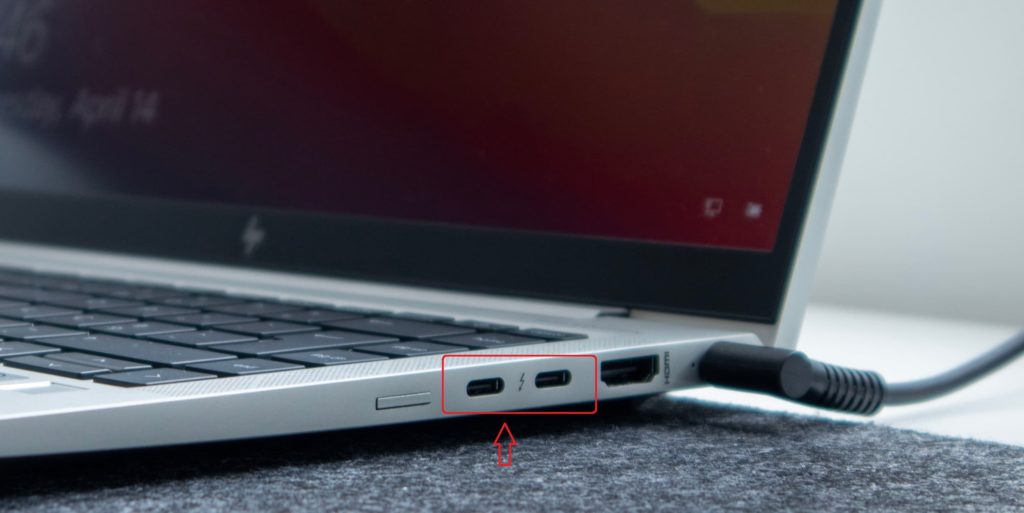
Since Thunderbolt transitioned to USB-C, a way of knowing whether your laptop supports the technology is to check your USB-C ports on your laptop. Most times than not, a Thunderbolt 3 port will be distinguished by a lightning bolt icon next to the USB-C port. That’s not to say that all laptops will use the Thunderbolt icon. Many don’t. If your laptop doesn’t have the Thunderbolt icon but you’d like to keep checking, there’s another way to find out.
Via Device Manager
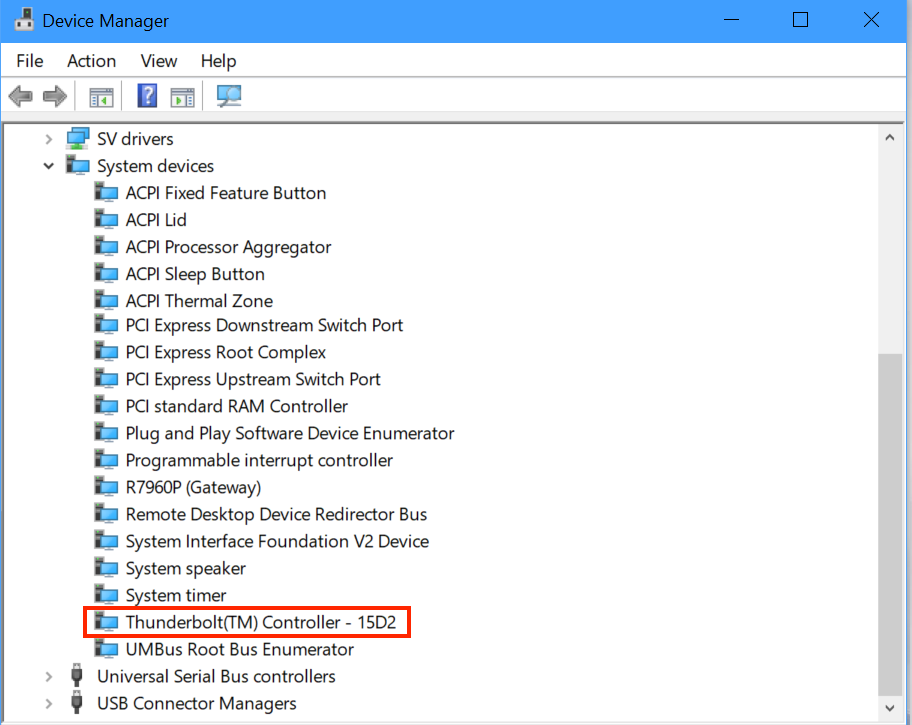
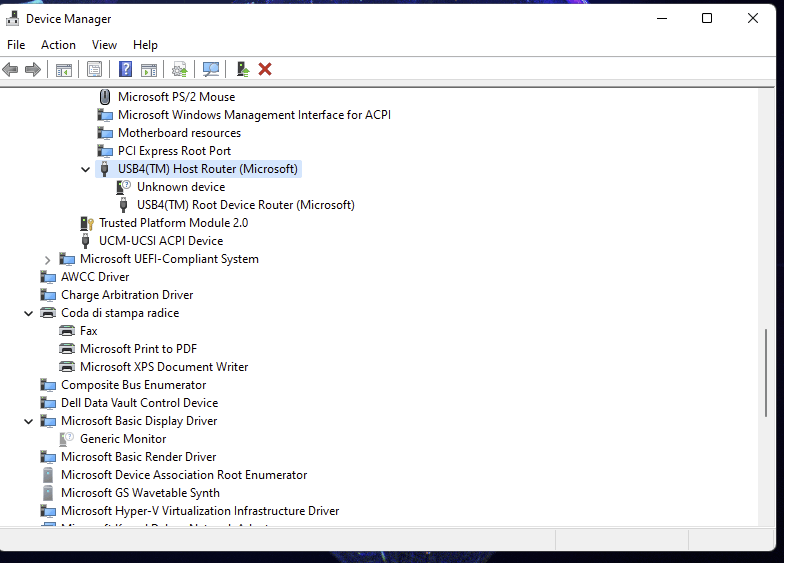
The device manager is another place to go to check whether your laptop supports thunderbolt 3 or USB4. Unless Thunderbolt 3 has been disabled in BIOS, you can always see the hardware on your motherboard via Device Manager. There are two easy ways to access the Device Manager; one is to enter Windows Key + X and then tapping on Device Manager. You can also just type Device Manager in the search box.If Thunderbolt 3 or USB4 is indeed supported, you should be able to see the device under system devices. If you don’t see it, it’s either not there at all, or has been disabled from BIOS for some reason. Depending on the brand of PC you have, pressing the functions keys (between F2 and F12), the ESC or DEL keys at start up will take you to BIOS.
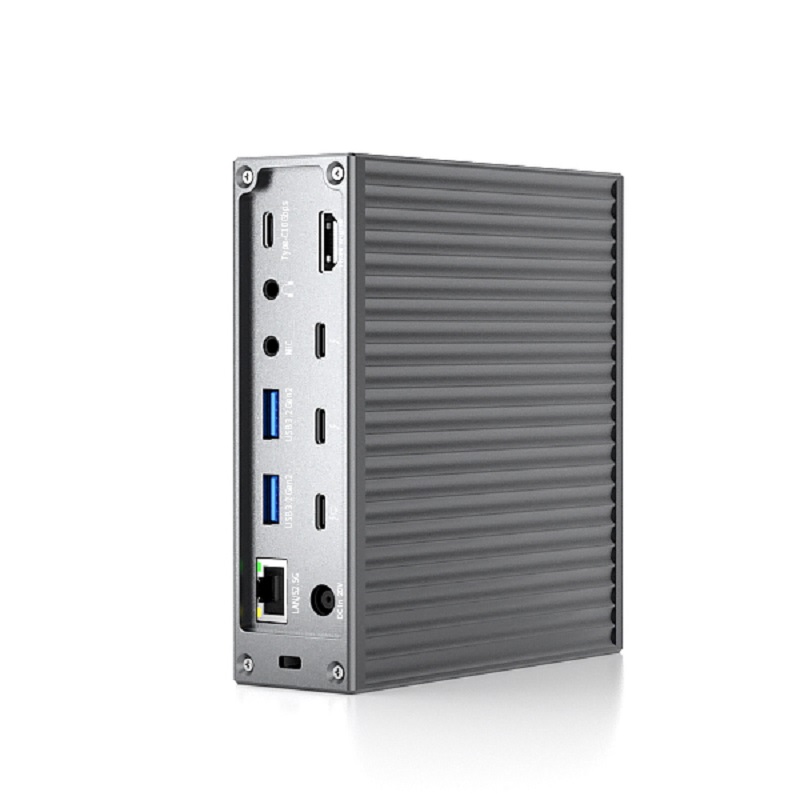 |
Usb4 Hub 20 in 1 thunderbolt4 docking station with HDMI usb4 hub |
|
Specifications:
Transfer Speed: 40Gbps (Compatible with USB4/3.2/3.1/3.0/2.0)
1x DC Power in 20V , Device host PD 85W
2xType C, TBT/USB4 40gbps interface downward compatibility
(Video output up to Single 8K@30Hz or Dual 4K@60Hz orThree 4K@30Hz), power output up to 15W
1*HDMI 8K@60Hz video output
4* USB A 3.2 Gen2 (Max 10Gbps data transmission)
2xUSB A 2.0 (Max 480Mbps data transmission)
1xTF/Micro SD 4.0 ( Up to 312Mb/s)
1xSD/MMC 4.0 (Up to 312Mb/s)
1xMIC (3.5mm )
2xAudio(3.5mm)
3* type-C 3.2 Gen2 (Max 10Gbps data transmission)
1*type-C 3.2 Gen2 PD20W (Max 10Gbps data transmission)
1xRJ45 2.5Gb Ethernet
|