In the pursuit of thin and light designs, modern laptops often sacrifice native ports, making the USB-C Hub (Docking Station) a "lifesaver" on the office desk.
It not only expands USB interfaces and HDMI but, most importantly, typically includes a Gigabit Ethernet port, providing us with a wired network environment that is more stable and faster than Wi-Fi. However, it is incredibly frustrating when you plug in the network cable expecting smooth speeds, only to see "No Network Connection" in the corner of your screen.
Is the hub broken? Is it a settings issue? Before concluding that the hardware is dead, please try this set of proven troubleshooting guidelines.
Why has your USB-C Hub Ethernet port gone on "Strike"?
Before diving into the fix, understanding the principle helps us find the right solution. A USB-C hub splits data through a single interface.
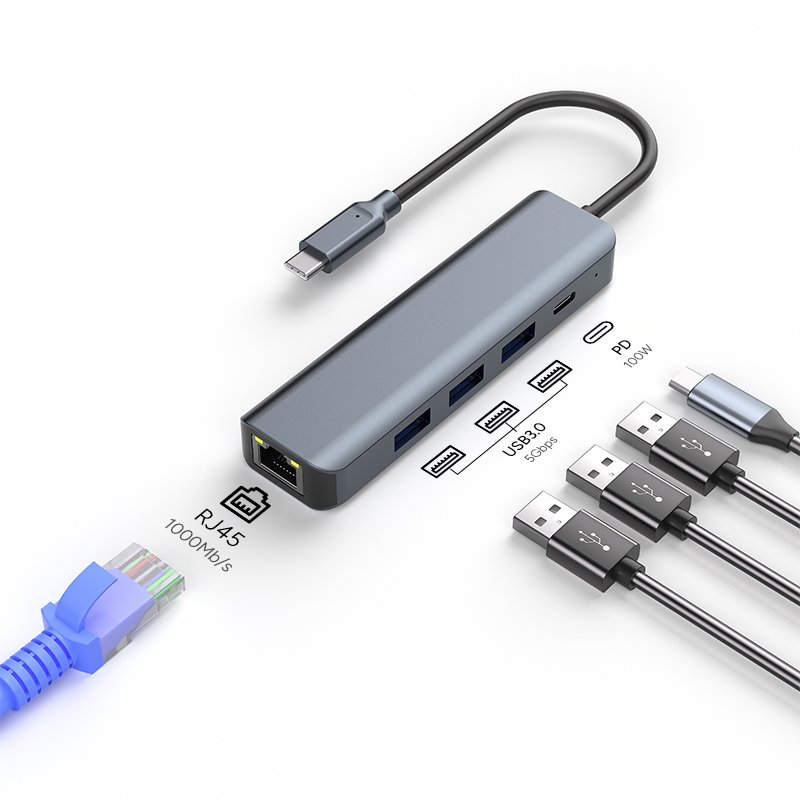
If you are using a Gigabit Ethernet port, it needs to handle a large number of data frames. Common reasons for port failure usually include:
-
Loose Physical Connection: Dust or poor contact points.
-
Driver Conflicts: Especially after a Windows update or macOS upgrade.
-
IP Address Configuration Errors: The computer cannot obtain the correct network address from the router.
-
Insufficient Power Supply: Too many connected devices causing unstable power to the hub.
Troubleshooting: Get Your Network Back Step-by-Step
If your Windows or Mac computer cannot access the internet through the hub, please perform the following operations in order:
1. Process of Elimination: Is it the Cable or the User? The most basic but most easily overlooked step.
- Check the Lights: Most hub Ethernet ports have LED indicators. Do they light up when the cable is plugged in? If not, the physical link is not established.
- Swap the Cable: Replace the current Ethernet cable with one you know works. Often, the issue lies with an aging connector (crystal head) on the cable, not the hub.
Direct Connection Test: If your laptop has a native Ethernet port (or you have another simple adapter), try connecting directly, bypassing the current hub. If the direct connection works, the issue is indeed the hub; if not, the problem lies with the router or your ISP.
2. Physical "Spring Cleaning" Hubs are often stuffed into bags, making ports prone to accumulating dust or debris.
- Check the inside of the RJ45 port for foreign objects and clean it gently by blowing air or using a soft brush.
- Ensure you hear a crisp "click" when inserting the network cable, indicating the latch is locked.
 3. The Power of "Restarting" (Including Hardware Reset) We need to do more than just restart the computer; we need to reset the entire network link.
-
Unplug Everything: Disconnect the hub from the computer and disconnect all devices from the hub (including the power cord).
-
Wait a Moment: Wait for about 30 seconds to let the hub's internal capacitors discharge.
-
Restart the Router: Unplug the router's power, wait 1 minute, and plug it back in.
Connect in Order: Boot the computer first -> Plug in the hub -> Finally, plug in the network cable.
4. Driver and Software Repair (Critical Step)
For Windows Users: Often, the driver is simply "stuck."
-
Right-click the "Start" button and enter Device Manager.
-
Find Network adapters and locate the network card device corresponding to the USB hub (usually labeled Realtek, ASIX, or USB Ethernet).
-
Plan A: Right-click -> Update driver -> Search automatically.
-
Plan B (More Effective): Right-click -> Disable device, wait 5 seconds, then right-click again -> Enable device. This forces a refresh of the network card status.
For macOS Users: Mac network settings sometimes "forget" new devices.
-
Go to System Preferences > Network.
-
Check the left list for "USB 10/100/1000 LAN" or a similar option.
-
If it doesn't exist, click the "+" button at the bottom left and try adding it manually.
-
Renew DHCP: Select the network service, click Advanced > TCP/IP, and click "Renew DHCP Lease". This step solves many "connected but no internet" oddities.
5. The Last Resort: Network Reset If none of the above works, the system network configuration might be corrupted.
- Windows: Go to Settings > Network & Internet > Status, scroll down to find "Network reset". This will restore all network adapters to factory settings (Note: You will lose saved Wi-Fi passwords).
Maintenance Tips: Make Your Hub Last Longer
To avoid similar problems in the future, pay attention to the following points during daily use:
- Control Temperature: Gigabit Ethernet ports generate significant heat when working. Ensure the hub is placed on a well-ventilated desk and not covered by books or clutter. Overheating can cause the network chip to stop working due to protection mechanisms.
- Regular Updates: Keep an eye on the hub brand's official website. Some high-end hubs provide firmware updates that can fix compatibility bugs.
- Handle with Care: Press the latch when plugging or unplugging the network cable to avoid violently pulling and damaging the metal contacts inside the port.
Conclusion
The vast majority of Ethernet failures on docking stations are caused by software conflicts or poor contact, not hardware damage. By following the troubleshooting steps above, you should have successfully restored your network connection. If the problem persists and you have ruled out the router and network cable, contacting the seller for warranty support is the wisest choice.
 3. The Power of "Restarting" (Including Hardware Reset) We need to do more than just restart the computer; we need to reset the entire network link.








