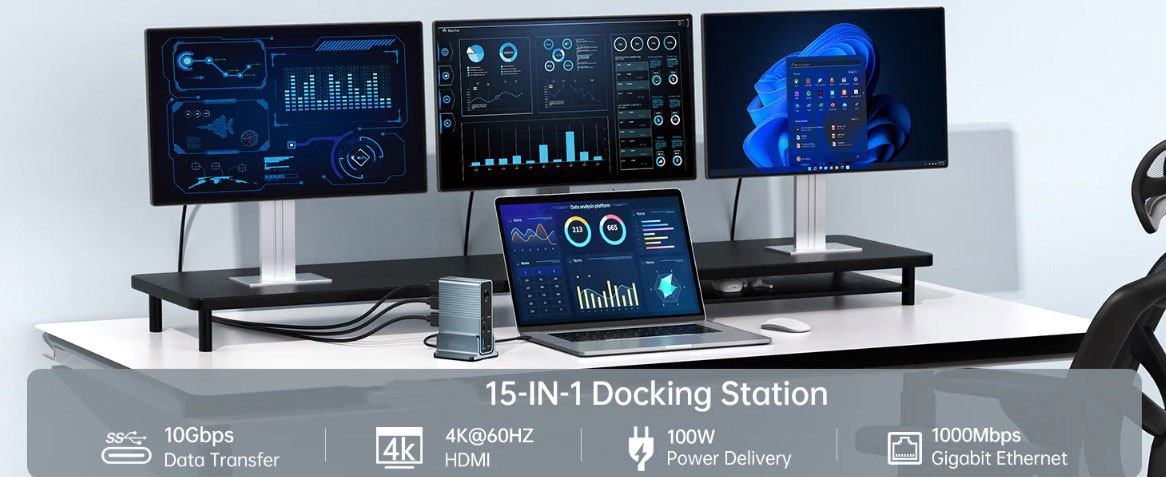
In the dynamic landscape of digital connectivity, USB-C to HDMI adapters have emerged as indispensable tools, enabling seamless communication between USB-C devices and HDMI - equipped displays. This comprehensive guide will take you through every aspect of these adapters, from their functionality and selection criteria to troubleshooting common issues and implementing preventive measures.
USB-C to HDMI adapters serve as the bridge between USB-C devices, such as laptops, tablets, gaming consoles, and smartphones, and HDMI monitors or televisions. They support the USB-C and HDMI standards, allowing for high - resolution video output on larger screens. This not only enhances the viewing experience but also proves invaluable for presentations during meetings, where the ability to use your device as a presentation tool with dual - monitor display support becomes a significant advantage.
Moreover, these adapters are typically lightweight and compact, making them ideal companions for business travelers who need to connect their devices to external displays on the go. Their compatibility with a wide range of USB - C - enabled devices further broadens their utility, making them a must - have accessory in the modern digital toolkit.
Considerations When Choosing a USB - C to HDMI Adapter
HDMI Version Compatibility: Pay close attention to the HDMI version supported by your monitor. Different HDMI versions offer varying levels of video quality, bandwidth, and features. For example, HDMI 2.0 can support 4K video at 60Hz, while HDMI 2.1 can handle even higher resolutions and refresh rates. Ensuring that the adapter is compatible with your monitor's HDMI version is crucial for optimal performance.
Active vs. Passive Adapters: Determine whether you need an active or passive adapter. Active adapters contain additional circuitry to boost the signal, making them suitable for longer cable runs or when connecting devices with weaker video outputs. Passive adapters, on the other hand, are simpler and more cost - effective but may be limited in terms of signal strength and compatibility with certain devices.
Troubleshooting Common Issues
Connection Confirmation
Physical Connection: Thoroughly check the USB - C and HDMI connections. Ensure that both ends of the adapter are firmly and correctly inserted into the device and the external display. Sometimes, a loose connection can lead to no signal or intermittent issues.
USB - C Port Functionality: If the USB - C port on your device seems unresponsive, verify its functionality. Try connecting a different USB - C device to the port to see if it works. If the port is not working, consider having it repaired or use an alternative USB - C port on your device.
Compatibility Problems
Device Compatibility: The HDMI port on your device or the adapter itself may be incompatible. Check the product specifications of your adapter and device to ensure they are compatible. If possible, try connecting the adapter to a different USB port on your device, starting with a USB 3.0 port if available. If all attempts fail, you may need to purchase a new, more compatible adapter.
Operating System and Drivers
Driver Updates: In most cases, issues with the adapter may not be related to the device or display but rather to outdated drivers. First, identify the version of your operating system. Then, visit the manufacturer's website (usually mentioned in the user manual) to download the latest drivers for your USB - C to HDMI adapter. Install the drivers and restart your device, making sure to disconnect the adapter before the restart. Tools like Driver Easy can also be used to automatically detect and install the appropriate drivers for your system.
Display Settings Check
Resolution and Input Settings: Review the display settings on your device and the HDMI monitor. Ensure that the display settings are configured correctly to accept the HDMI input. If your HDMI device has a resolution control menu, set it to “Auto” initially. Then, adjust the resolution to match the native resolution of your video projector or monitor. For example, if your TV or projector supports 720p, 1080p, or 4K, set the resolution accordingly.
Hardware Troubleshooting
Adapter and Port Inspection: Hardware problems can often be traced back to a faulty adapter or damaged USB - C or HDMI ports. Test the adapter by connecting it to a different device or try using a different adapter with your device. If the adapter is found to be faulty, it needs to be replaced. For the ports, check for physical damage, loose connections, or signs of wear and tear. Connect other peripheral devices to the same ports to see if they function properly. If the port is physically damaged, it may require professional repair or replacement. In cases where the problem is due to a loose connection or debris, carefully clean the port using a suitable cleaning tool.
Testing with Alternative Devices
Adapter and Port Switching: Use a Spare equipment to test the adapter. If the HDMI adapter fails to work with multiple devices, it is likely that the adapter is defective and needs to be replaced. Additionally, try connecting the adapter to different USB ports on your computer or laptop. The current USB port in use may be the source of the problem. If you have a spare USB - C to HDMI adapter or hub, switch between them to determine if the issue lies with the hardware.
Seeking Professional Help
If all your attempts to resolve the problem prove fruitless, do not hesitate to contact the manufacturer or a professional technical support team. They have the expertise and resources to diagnose and fix complex issues that may be beyond your reach.
Preventive Measures
Compatibility Assurance: Before purchasing a USB - C to HDMI adapter, thoroughly research and ensure its compatibility with your specific devices. Check the product description, user reviews, and manufacturer's recommendations to avoid potential compatibility issues.
Cable and Adapter Quality: Invest in high - quality USB - C to HDMI adapters and cables. Quality products are more likely to provide a stable and reliable connection, reducing the risk of signal loss, interference, or other issues. Avoid using cheap, low - quality adapters that may not meet the necessary standards.
Proper Handling and Storage: Handle the adapter and cables with care. Avoid excessive force or twisting when connecting or disconnecting them, as this can damage the components. When not in use, store the adapter in a safe and clean place, away from extreme temperatures, moisture, and physical damage.
Regular Updates: Keep your device's operating system, drivers, and firmware up to date. Manufacturers often release updates to improve compatibility, fix bugs, and enhance performance. Regularly check for and install these updates to ensure the smooth operation of your USB - C to HDMI adapter.
Conclusion
By understanding the functionality, making informed choices when purchasing, and knowing how to troubleshoot common issues, you can ensure a seamless experience with your USB - C to HDMI adapter. Implementing preventive measures will further enhance the reliability and longevity of the adapter, allowing you to enjoy a stable connection between your USB - C device and external HDMI display, and fully unlock the potential of your multimedia devices.