Whether your laptop is equipped with an Ethernet port or not, or you are using the latest model that has abandoned this connection option, this guide will provide you with comprehensive instructions to help you connect Ethernet to your laptop. Now, let's get into the mysteries of Ethernet cables, learn how to connect an Ethernet cable step by step, and explore how to solve this problem on laptops without Ethernet ports.
What is an Ethernet cable?
An Ethernet cable is a network cable used to connect devices within a wired network. It is essential for transmitting data between computers, routers, switches, and other network devices. Ethernet cables ensure high-speed and reliable communication by transmitting signals and data packets over different physical media.
There are many types of Ethernet cables, such as Cat5, Cat5e, Cat6, and Cat7, each with different specifications and functions. Among them, the higher the category, the greater the transmission speed and bandwidth capacity. Ethernet cables are usually made of twisted copper wires to reduce interference and maintain the integrity of signals over long distances. Ethernet cables of different lengths are essential for establishing a stable wired connection in environments such as homes and offices.
A Step-by-Step Guide to Connecting an Ethernet Cable to Your Laptop
Now that you know the basics of Ethernet cables, let's go into detail on how to connect an Ethernet cable to your laptop.
Gather the Necessary Equipment
Before you begin, make sure you have the following equipment:
>An Ethernet cable for your laptop (usually Cat5e or Cat6)
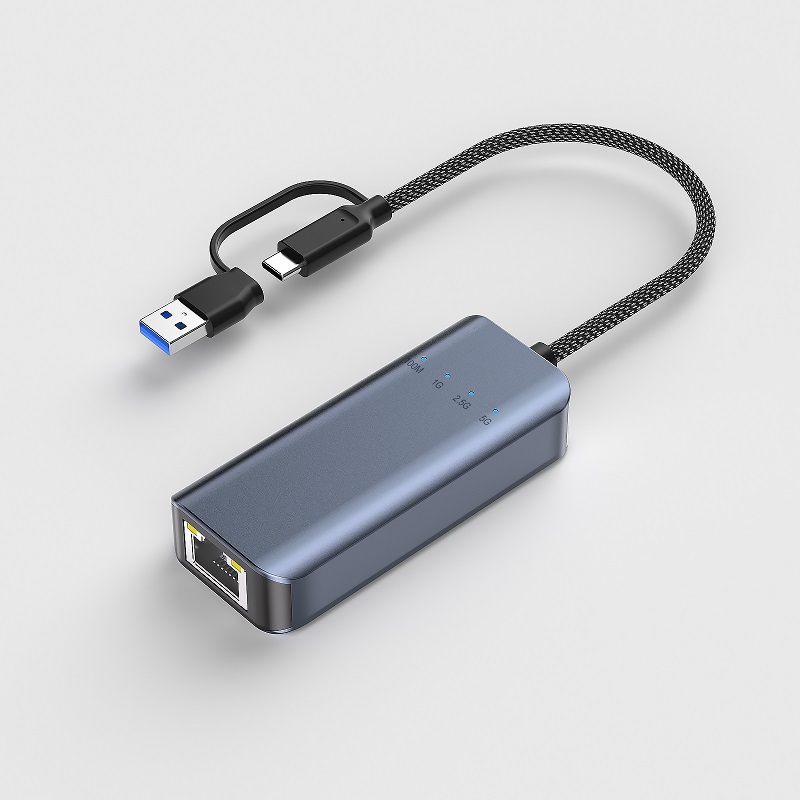
>If your laptop doesn't have an Ethernet port, you'll need a laptop with one or a USB-to-Ethernet adapter.
Find the Ethernet Port
Find the Ethernet port on the side or back of your laptop. It's a rectangular port with a small plastic piece that looks like a phone jack but is slightly larger. If your laptop doesn't have an Ethernet port, you can use a USB-to-Ethernet adapter and connect it to any available USB port.
Insert an Ethernet Cable
Gently insert one end of the Ethernet cable into the Ethernet port on your laptop until you hear a click indicating a secure connection. Connect the other end to an Ethernet wall jack, modem, router, or switch.
Configure Network Settings
After connecting the Ethernet cable, you may need to configure network settings to connect to the internet. Here are the configuration steps for different operating systems:
Windows:
>Right-click the network icon in the system tray and select "Open Network and Internet Settings".
>Click "Change Adapter Options", find and right-click "Ethernet", and select "Properties".
>Click "Internet Protocol Version 4 (TCP/IPv4)", and select "Properties".
>Select the "Obtain an IP address automatically" and "Obtain DNS server address automatically" options, and click "OK" to apply the settings.
macOS:
>Open "System Preferences" and click "Network".
>Click the "+" button in the lower left corner and select "Ethernet" from the "Interface" drop-down menu.
>Enter a name for this connection and click "Create".
>Set "Configure IPv4" to "Use DHCP" and click "Apply" to save the settings.
Linux (Ubuntu):
>Click the network icon in the system tray and select "Wired Settings".
>Click the gear icon next to "Wired" to open the "Wired Settings" window.
> Switch the "Automatic (DHCP)" option to "On" and click "Apply" to save the settings.
Connect Ethernet Cable to Laptop Without Ethernet Port?
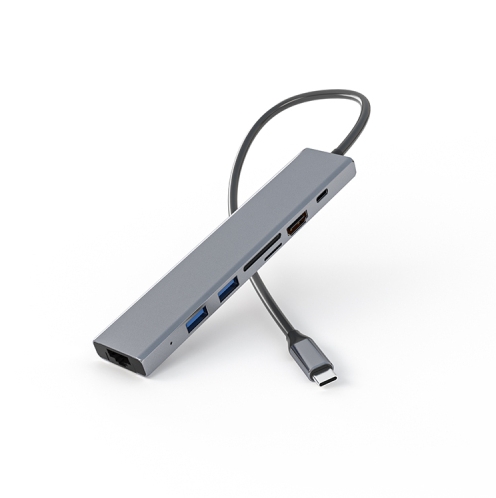
If your laptop lacks an Ethernet port, the Purplelec USB-C Hub (7-in-1, Slim) is a compact, all-in-one solution to stay connected. Designed for modern devices like MacBook Pro, MacBook Air, iPad Pro, and Dell XPS, this hub allows you to connect seamlessly to the internet using its 1Gbps Ethernet port, ensuring a fast and stable wired connection—perfect for streaming, gaming, or work.
 |
7 in 1 Single Wire Portable Type C Dock Station With HDMI®/LAN |
|
• Support power delivery charging (PD)
• 1xHDMI, video output 1080p@60Hz up to 4k@30Hz
• 1xGigabit Ethernet, up to 10/100/1000Mbps network
• 2xUSB3.0, data transfer speed up to 5Gbps
• 1xSD/Micro SD card reader up to 104MB/s. data transfer between SD and Micro SD cards directly.
• compatible with Switch •Aluminum housing+ABS
|
In addition to Ethernet connectivity, the hub delivers massive expansion with a variety of ports. You get an HDMI port to connect external displays at up to 4K@30Hz resolution, perfect for clear and smooth presentations or media streaming. The USB-C and two USB 3.0 ports allow you to transfer data quickly and connect peripherals like keyboards, mice, or external drives.
Alternatively, a USB to Ethernet adapter can be used.
Conclusion
In short, it has never been easier to establish a fast and reliable wired connection. Whether your laptop is equipped with a built-in Ethernet port or not, following our comprehensive guide, you can fully utilize the power of Ethernet and enjoy seamless Internet connectivity. Say goodbye to unstable Wi-Fi and embrace the world of lightning-fast Internet with a reliable Ethernet connection!