In the realm of home and office device connectivity, analog cables were commonly used for audio and video transmission in the past. HDMI technology delivers signals in a purely digital manner, avoiding conversion loss and resulting in clearer image quality.
High-quality visuals demand reliable connections, which is precisely what the HDMI docking station offers. Serving as an extension port for host devices, it allows simultaneous connection to various peripherals, ensuring stable transmission of digital signals.
Understanding the HDMI Docking Station
The HDMI docking station primarily addresses the issue of insufficient device ports. Modern slim devices often retain only core interfaces. With a docking station, users can connect displays, storage devices, and network modules. This design offers greater flexibility for work and entertainment setups.
How It Works
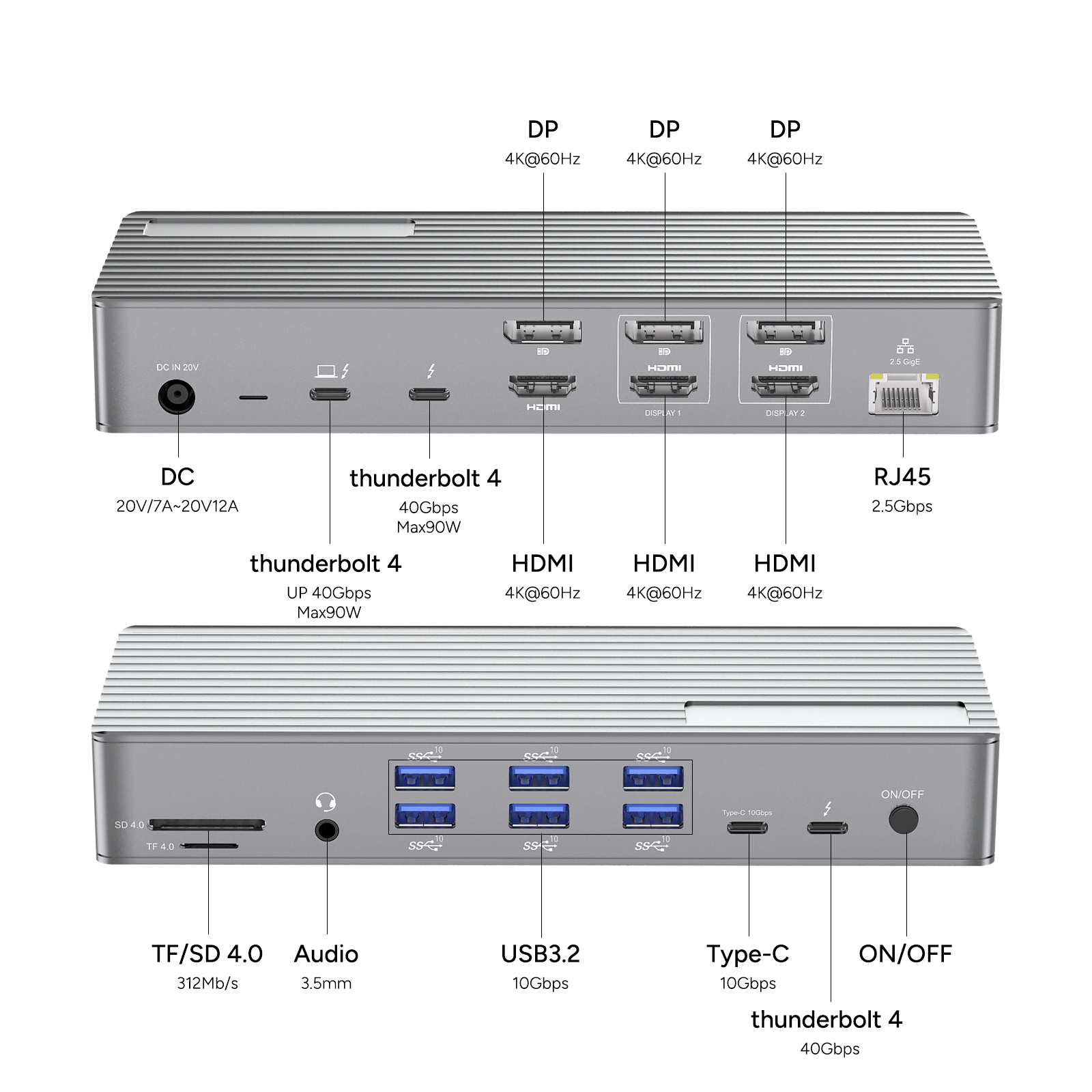
Typical docking stations connect to the host via a single cable, often using USB-C or Thunderbolt interfaces for data transmission. The dock integrates multiple output ports, including HDMI for video, USB for data, Ethernet for networking, and charging modules. Some models feature built-in chips that optimize signal integrity, ensuring interference-free multi-channel output.
Usage Guide
The connection process is straightforward:
Plug the docking station's main cable into a computer or mobile device;
Connect display devices to the dock's corresponding HDMI port;
Insert external hard drives, keyboards, and other accessories into the USB ports on the dock;
For internet access, plug an Ethernet cable into the dock's LAN port.
Wireless models pair with the host via built-in modules, reducing cable clutter.
Key Features
The core value of the HDMI docking station lies in its ability to consolidate multiple ports. Laptop users need only a single cable to connect to large displays, wired networks, and various peripherals. Some models support 4K high-definition output and Power Delivery fast charging, keeping workspaces tidy and organized.
When selecting a docking station, ensure device compatibility and opt for certified products. The multi-port design saves time when switching between devices.
Common Categories
Based on functionality, docking stations can be classified as:
Basic docking stations
Multi-display output models
Units with built-in storage card readers
Models supporting high-speed networking
By performance tier, they are divided into:
Standard HD docking stations
4K Ultra HD docking stations
8K Professional-grade docking stations
In terms of port combinations: lightweight models offer HDMI and USB-A ports; advanced versions add Ethernet, VGA, and audio ports; flagship models feature Thunderbolt interfaces and SD card slots.
Application Scenarios
These devices suit various environments: connecting to hotel TVs for presentations during business trips, mirroring course content to displays for home learning, or interfacing with professional color grading equipment in creative studios. In commercial settings, they can work with digital signage systems to display promotional materials.
Practical Applications
Mobile Office: While traveling, use a docking station to connect an ultra-thin laptop to a conference room projector, simultaneously accessing USB drive data and wired networks to ensure smooth presentations.
Gaming and Entertainment: Gaming laptops connected via a docking station can drive dual monitors—displaying the main game on one screen and walkthroughs or live streams on the other, with USB ports available for mechanical keyboards.
Educational Demos: Teachers can connect tablets to a docking station to output instructional videos to classroom screens while charging the device and plugging in wireless microphone receivers via USB ports.